Google Pics vs. Google Photos: What’s the Difference?
Learn the difference between Google Pics and Google Photos: compare AI image editing, Workspace workflows, personal photo library tools, and use cases.
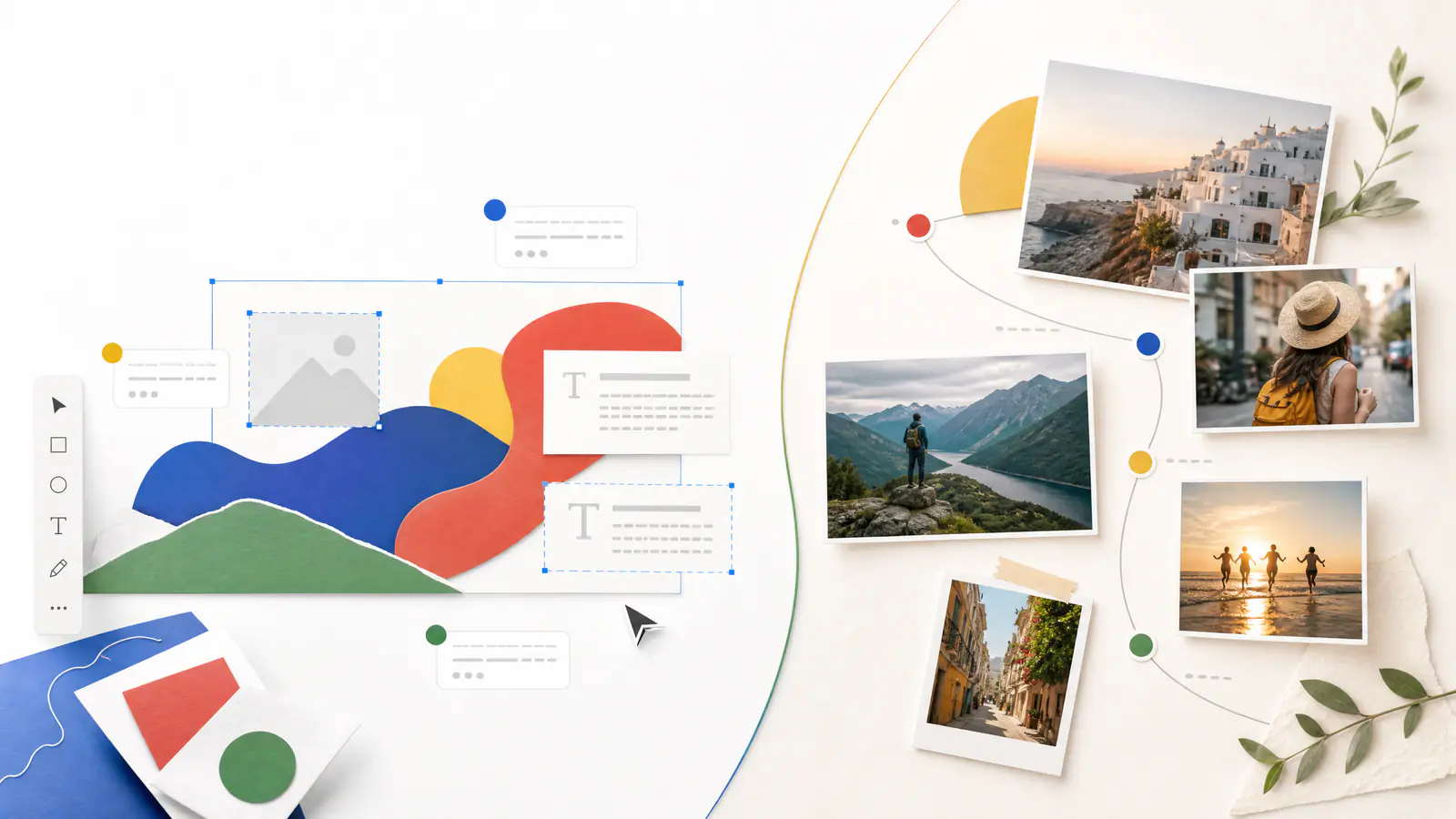
If you have seen Google Pics appear beside Google Photos in search results, you are not alone in wondering whether it is an update, a rebrand, or simply another name for the same thing. The names are close enough to create real confusion, especially now that both products use AI to generate or alter images.
They are not the same product, and they are not designed for the same moment in your workflow.
Google Photos starts with a personal library: the pictures and videos you took, want to find again, organize, edit, share, or turn into a memory. Google Pics starts with a work task: a visual you need to create, refine, localize, or place in a document or presentation. One is primarily a photo home; the other is an AI image creation and editing workspace.
That distinction matters because it tells you where to begin. Use Google Photos when the value is already in your library. Use Google Pics when the visual still needs to be made—or when one part of an image needs to change without rebuilding the whole thing.
Quick answer
Use Google Photos to back up, organize, search, edit, share, and creatively reuse personal photos and videos. Its Create tools include collages, highlight videos, animations, Photo to video, Photo remix, and Video remix.
Use Google Pics to generate and precisely edit work visuals with Gemini-based AI. It can start from a written prompt or an imported image, lets you target an object, region, or text element, and is designed to work with Google Workspace, including Docs and Slides. It is currently a desktop experience for eligible Google Workspace and Google AI plans.
The short version: one is a library; the other is a canvas
The easiest way to separate the two is to ask what you already have.
If you have hundreds of holiday pictures and need to find the one from a particular beach, build an album, apply a light edit, or make a short recap, Google Photos is the natural starting point. Its organizing, search, backup, sharing, and memory-oriented features are central to the product.
If you have a draft product image that needs a different background, a presentation visual with the wrong wording, or a blank space in a campaign brief that needs an original illustration, Google Pics is the better starting point. It is built around the cycle of generating, selecting, refining, and placing visual material inside a work context.
Here is the practical comparison.
| Question | Google Pics | Google Photos |
|---|---|---|
| Primary job | Create and precisely edit images for work | Store, find, edit, share, and revisit a personal photo and video library |
| Typical starting point | A prompt, a product image, a design reference, or an image in Docs/Slides | Photos and videos already backed up to a personal account |
| Best for | Presentations, promotional graphics, product concepts, image localization, and document visuals | Family libraries, travel albums, light photo edits, memory videos, and shareable creations |
| AI editing model | Select an object, region, or text element; describe the targeted change | Use guided creation tools, templates, effects, and prompt/effect-based photo or video transformations |
| Text inside an image | Can detect, change, restyle, and translate text elements | Not the core reason to choose the product |
| Collaboration | Designed for sharing and co-editing in a Workspace flow | Designed for sharing albums and memories |
| Where it works now | Desktop; standalone editor plus Docs and Slides integration | Web and mobile apps, with feature availability varying by device, account, and region |
| Who can use the newest generative tools | Eligible paid Workspace or Google AI plans | Personal Google accounts for certain generative creation features; age, region, backup, and daily-limit rules apply |
The table does not mean one product is “more powerful.” It means they solve different problems. A photo library with creative tools is not automatically a design editor; an AI design editor is not automatically a photo library.
What Google Pics is actually for
Google describes Google Pics as an AI image generator and editor built into Google Workspace. You can open it in a browser, import an image from a computer, Google Drive, or Google Photos, or generate a new image from a written prompt. That is useful, but the real reason it exists is the editing layer after generation.
Rather than making you regenerate an entire image because one element is wrong, Pics lets you select a specific object or drag across a region and describe the change. You can queue up to five element-level changes before applying them. It also supports editing and translating text inside an image, along with cropping, rotating, changing aspect ratio, and undoing adjustments.

A useful image-editing workflow starts by deciding what must remain unchanged before requesting a local change.
The goal is not merely a different image; it is a controlled change that preserves the parts that were already right.
That is a different mindset from scrolling through an existing camera roll. In a work setting, the question is often not “Where is that photo?” It is “Can I make this visual fit the brief without sending it back to a designer for one small revision?”
Google Pics is also intended to reduce the handoff between image creation and document work. In Google Docs, you can select an image, choose Edit image, make the change in Pics, then replace the image in the document. Google Slides follows a similar path: select the image on a slide, open it in Pics, edit it, and replace it in the presentation. That may sound like a small convenience, but it removes the familiar export–rename–re-upload loop that makes visual changes feel slower than they should.
Choose Google Pics when the job sounds like this
- “Make this product photo feel like it was shot in a warm kitchen, but keep the packaging intact.”
- “Translate the wording on this social graphic without rebuilding its layout.”
- “Generate three concept images for the opening slide, then refine the best one.”
- “Use this reference image’s color treatment on a new campaign visual.”
- “Change only the chair in this room image, not the floor, windows, or lighting.”
In other words, Pics makes sense when the image is an editable working asset—not just a record of a past moment.
What Google Photos is actually for
Google Photos is still the place where personal imagery lives. Its value begins with backup, search, sorting, albums, sharing, and the ability to revisit a large library without manually naming every file. Its creative features extend that library rather than replacing it.
The product’s Create area groups several ways to turn existing pictures and clips into something new. You can make animations, collages, cinematic photos, and highlight videos. The more generative options include Photo to video, which animates a selected still image into a short clip, Photo remix, which applies AI-powered templates to reimagine a photo, and Video remix, which can restyle or relight a short backed-up video.

Whether the output is an animation, collage, or highlight video, the material begins with a collection of personal photos rather than a blank design brief.

Google Photos gathers lightweight creative actions around the personal media library rather than around a blank work canvas.

The useful question here is not “Can it make an image?” but “What can I make from the photos I already keep?”
Those features make Google Photos more creative than a traditional photo storage service, but its center of gravity remains personal media. A highlight video begins with people, places, events, dates, and clips you already own. Photo to video begins with a picture from your library. Even when the result is playful or surprising, the emotional value usually comes from the original photograph.
For Photo to video specifically, Google’s current help guidance says you choose an effect or write a motion, scene, or effect prompt, wait for a short result to generate, then save or share it. The feature can include audio, but availability is not universal: it requires a personal Google account, has age and regional restrictions, depends on a network connection and backed-up photos, and is subject to daily generation limits. Google also warns that AI-generated results may be unexpected or inaccurate.
<iframe width="100%" height="460" src="https://www.youtube.com/embed/7kvtHCK2W9s" title="Google Photos Remix feature tutorial" frameborder="0" allow="accelerometer; autoplay; clipboard-write; encrypted-media; gyroscope; picture-in-picture; web-share" allowfullscreen></iframe>
This walkthrough illustrates the kind of template-led personal photo transformation that belongs in the Google Photos workflow.
Choose Google Photos when the job sounds like this
- “Find the best pictures from our trip and make a shareable recap.”
- “Create a quick highlight video from last year’s birthday photos.”
- “Animate a favorite still image for fun.”
- “Apply a remix style to a personal photo and send it to friends.”
- “Keep my photo library backed up, searchable, and easy to share.”
The distinction is subtle but important. Google Photos is about what happened and what you saved. Google Pics is about what you still need to make.
Where the overlap is real—and where it ends
The products overlap in three ways. Both can take an existing image as an input. Both offer AI-assisted changes. Both are part of the broader Google ecosystem. That overlap is exactly why their names cause confusion.
But the overlap ends at the workflow.
Suppose you took a good photo of a product on your phone. You might use Google Photos to store it, locate it later, share it with a colleague, and perhaps make a quick animated version. Once the same photo becomes the hero visual for a sales deck and needs a precise background replacement, revised wording, a new aspect ratio, and approval from teammates, the task has moved into Google Pics territory.
Conversely, a polished image created in Pics may eventually be saved to Drive or downloaded, but that does not make Pics a substitute for the life-long, searchable personal library that Photos is designed to be.
| If your real task is… | Start with | Why |
|---|---|---|
| Finding a picture from a past event | Google Photos | Library search and organization are the foundation |
| Making a birthday, travel, or family recap | Google Photos | Highlight videos and memory-based creation start with existing media |
| Editing one product object in a campaign image | Google Pics | Targeted object or region edits are the relevant control |
| Localizing text on an existing visual | Google Pics | In-image text editing and translation are built into its purpose |
| Making a collage from existing photos | Google Photos | The material is a personal collection, and the output is a memory format |
| Creating a presentation visual from a written brief | Google Pics | Prompt-led generation and Slides/Docs integration shorten the work loop |
| Trying a playful photo transformation | Google Photos | Remix and Photo to video are library-led creative tools |
A note on Gemini and Nano Banana
Two other names add to the confusion: Gemini and Nano Banana.
Gemini is Google’s broader AI assistant and interface. Nano Banana is the name associated with Google’s Gemini-based image generation and editing model family. They are not interchangeable product names for either Google Pics or Google Photos.
A helpful way to remember the relationship is this: a model is the engine; an app is the place where a person performs a task. Google Pics uses Gemini-powered imaging capabilities in a workspace made for deliberate image creation and editing. Google Photos uses AI features in a personal photo-library experience. The same company can use related AI technology in both places without making the products identical.
Access and limitations matter more than the product name
Before planning a workflow around either tool, check access. Google Pics availability guidance lists desktop access for eligible plans, including Workspace Business Standard and Plus, Enterprise Standard and Plus, Google AI Pro and Ultra, and Google AI Pro for Education. It is not available for personal-use accounts in Germany. Generative usage has limits, and higher-resolution downloads use promotional limits faster.
Google Photos’ AI creation rules are different. Its generative tools have their own requirements around personal accounts, age, country or region, backed-up media, and daily limits. They are not offered to Google Workspace or school accounts for the set of Photo to video, Photo remix, and Video remix features described in Google’s help guidance.
That means an employee cannot assume that a personal Google Photos feature will appear inside a company Workspace account, and a consumer cannot assume that a work-focused Pics feature will appear in the Google Photos mobile app. The account type is part of the product decision.
The decision is simpler than the names make it seem
The two products only look redundant when you describe both as “Google tools that use AI on images.” That is technically true and practically unhelpful.
Start with the asset and the outcome instead.
If you are protecting, finding, sharing, or creatively revisiting photos that matter to you, open Google Photos. If you are creating a visual asset for a brief, correcting a specific element, adapting an image for a document, or collaborating on a presentation-ready graphic, open Google Pics.
The names may remain easy to mix up. The workflows are not. One helps you make more of the memories you already have; the other helps you make the image work you still need to finish.