7 Best AI Product Photography Tools for E-commerce in 2026
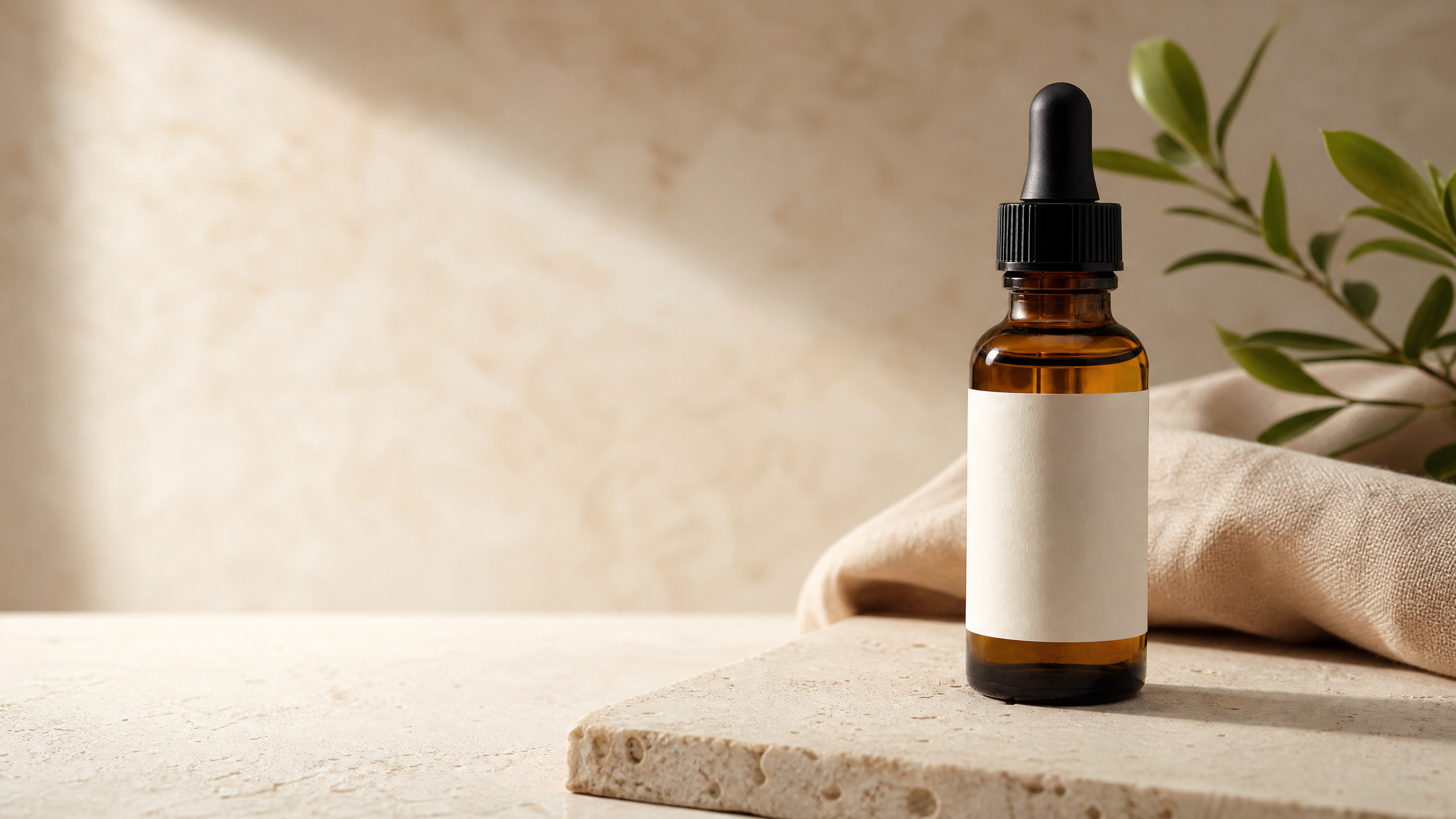
AI product photography works best when it keeps the product truthful while changing the setting around it.
A beautiful AI product image is not automatically a useful product image.
That distinction matters when you sell online. A generic image generator may create a dramatic scene, but it can also change the shape of a bottle, invent a zipper, blur a logo, remove an accessory, or show a color that your customer will never receive. Those errors are not small design flaws. They can lead to disappointed buyers, returns, and a loss of trust.
The best AI product photography tools solve a more practical problem: they help a small team create accurate, consistent, platform-ready images without booking a new shoot every time a product, campaign, or season changes.
This guide is designed to help you choose a tool by the job you actually need to complete. It does not rank products solely by how impressive their demo images look. Instead, it separates catalog cleanup, creative lifestyle scenes, apparel imagery, large-volume enhancement, and art-directed campaigns—because each job calls for a different kind of AI.
Our editorial recommendation: Start with Photoroom if you need faster catalog production, Pebblely if you need lifestyle scenes, Flair if your brand team needs art direction, Claid if you need automated image enhancement at scale, and insMind AI Virtual Model if you sell apparel.
Quick decision table
If your main problem is…Start withWhy it is the best fitDo not choose it first when…Removing backgrounds and preparing many SKU images quicklyPhotoroomIt combines background removal, resizing, batch editing, brand assets, and workflow automation.You need highly art-directed campaign scenes with precise prop placement.Turning one clean product cutout into social-ready lifestyle imageryPebblelyIt is purpose-built for generating varied product scenes and backgrounds from a product image.Your source image is blurry or the product label must remain perfectly legible at close range.Building a campaign with exact props, composition, and brand stylingFlairIts canvas-based workflow lets you stage a scene before AI renders it.You only need a fast white-background marketplace image.Correcting, standardizing, and automating a large catalogClaidIt focuses on enhancement, background work, and API-based image workflows.You are a solo seller processing only a handful of images per month.Putting clothing on diverse human models without a new shootinsMind AI Virtual ModelIt is designed for mannequin, ghost-mannequin, and flat-lay-to-model fashion imagery.You are selling non-apparel products such as furniture, food, or electronics.Creating a product image and the finished social post in one placeCanva AI Product PhotosYou can generate the image inside a design workflow, then add copy, logos, and layouts.You need deep retouching control or a production-grade catalog pipeline.Making complex, pixel-level edits without losing control of the original fileAdobe Photoshop Generative FillIt combines generative editing with selections, layers, reference images, and non-destructive workflows.You want the fastest beginner-friendly option with almost no learning curve.
Before you choose a tool: use the “product truth” test
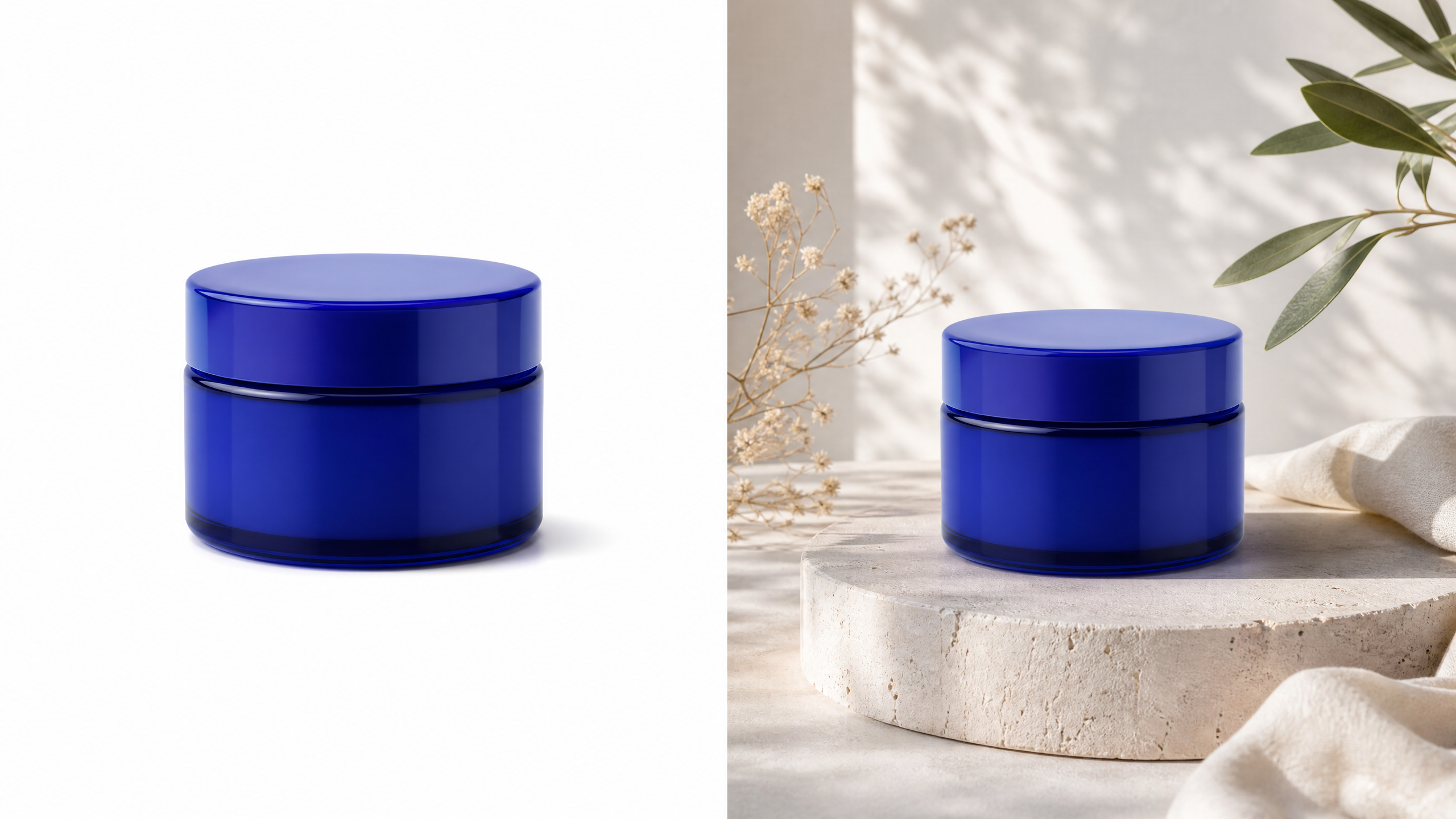
The product should remain the same in every generated variation; only the setting, crop, and supporting elements should change.
Every tool in this guide can make a visually attractive image. The harder question is whether the image remains truthful to the item you are selling.
Before publishing any AI-assisted product image, review it at 100% zoom and check the following five points:
Product-truth checkWhat to inspectWhy it mattersShape and silhouetteCorners, handles, sleeves, straps, closures, and proportionsAI may subtly bend or invent physical details.Brand and label accuracyLogos, claims, ingredient lists, sizes, and packaging textUnreadable or altered text can create compliance and trust problems.Color accuracyProduct color, material finish, and shade variationA warm AI scene can make a white product look cream or a blue product look teal.Included componentsCaps, cables, accessories, product count, and bundle contentsAI sometimes adds or removes objects in a scene.Believable contactShadows, reflections, surface contact, and scaleA product that appears to float looks artificial and may hurt perceived quality.
This check is the most important step in the entire workflow. Use AI to create the setting, improve the lighting, or expand the canvas. Do not allow it to change the product itself unless the image is clearly conceptual and not being used to represent a purchasable item.
The 7 best AI product photography tools
1. Photoroom: best for fast catalog images and day-to-day e-commerce work
Photoroom is the best starting point for most small e-commerce businesses because it solves the unglamorous but essential work first: removing backgrounds, cleaning an image, resizing it for a channel, and producing consistent variations across many SKUs.
Its product-photography workflow includes background removal, AI background generation, lifestyle images, image enhancement, resizing, batch editing, brand-kit features, and automation options.[1] That combination matters more than a single impressive AI generation. A seller needs a reliable way to prepare a product for a listing, a marketplace thumbnail, an ad creative, and a social post—not just one attractive hero image.
Choose Photoroom when:
-
You photograph products with a phone and need polished results quickly.
-
You have a growing catalog and need the same treatment applied across many images.
-
You sell on marketplaces where clean backgrounds and consistent crops matter.
-
You want a practical mobile-first workflow rather than a design-heavy interface.
Watch out for: Lifestyle images still need a product-truth review. AI backgrounds are useful for creativity, but the final output should never hide key product features or make dimensions ambiguous.
Best workflow: Photograph the item in even daylight → remove the background → create a clean primary listing image → generate two lifestyle variants → export platform-specific crops.
2. Pebblely: best for lifestyle scenes that do not look like a plain cutout
Pebblely is built around a specific e-commerce problem: you already have a clean product image, but it looks flat, generic, or disconnected from the lifestyle you want to sell. It generates varied product photography scenes, including backgrounds, surfaces, and contextual settings, from a product image and prompt.
This makes Pebblely particularly useful for beauty, candles, food packaging, home goods, jewelry, and similar items that benefit from mood and context. It is often a better choice than a general image generator when you need multiple seasonal or campaign concepts from the same product cutout.
Choose Pebblely when:
-
Your original product photo is already clean but needs a believable environment.
-
You need a spring, holiday, outdoor, editorial, or premium-studio variation without arranging a physical set.
-
You need several creative directions to test in paid social or email campaigns.
Watch out for: Do not use a heavily generated lifestyle scene as the only listing image. Shoppers should still be able to see an accurate, unobstructed product shot elsewhere on the product page.
Useful prompt pattern:
[Product] on [surface], in [environment], [lighting direction], [mood], [camera framing]. Keep the product’s original shape, label, color, and proportions unchanged.
For example: “Amber glass skincare jar on light travertine in a calm bathroom, morning window light from the left, soft realistic shadow, editorial product photography. Keep the original jar label, lid, color, and proportions unchanged.”
3. Flair: best for brands that need art direction rather than random generations
Flair is the better option when your team does not want to accept whatever scene an AI happens to generate. Its workflow is based on a drag-and-drop canvas: you can stage props and backgrounds, then use AI to bring the composition to life. Flair also highlights on-brand content generation, AI ad creation, custom AI human models, team collaboration, and API access.
The key advantage is control. A brand manager can decide where the product sits, how much empty space is available for text, and which visual elements belong in the scene before generating the final image.
Choose Flair when:
-
Your visual identity uses recurring props, colors, or compositions.
-
You need image space for headlines, badges, or offer messaging.
-
Multiple people must review and produce assets in a consistent campaign style.
-
You want to create ads and product scenes from the same brand system.
Watch out for: Flair is more powerful than a one-click tool, but that also means it works best when someone takes ownership of the visual direction. It is not the fastest option for processing 500 plain marketplace listings.
4. Claid: best for image quality, standardization, and API-scale production
Claid is designed for the operational side of product photography. It offers image enhancement, background removal and generation, resizing, and API-based workflows for e-commerce imagery. Its positioning makes it especially relevant when quality and consistency must be applied across a large number of images, including seller-uploaded photos that were not captured under ideal conditions.
For a marketplace, multi-vendor store, or large catalog, the challenge is rarely “Can we make one nice-looking image?” The challenge is “Can we make every image meet the same visual standard without assigning a designer to each one?” Claid is aimed at that problem.
Choose Claid when:
-
You need to improve poor or inconsistent source images.
-
You receive vendor imagery with uneven lighting, low resolution, or inconsistent dimensions.
-
You need automation through an API or a repeatable operations workflow.
-
Your catalog contains enough images that manual editing is becoming a bottleneck.
Watch out for: Automation is valuable only after you define a clear image standard. Decide your background style, crop ratio, naming convention, and approval rules before processing thousands of assets.
5. insMind AI Virtual Model: best for apparel, mannequins, and flat lays
Fashion has a different product-photography problem from most other categories. Customers need to understand fit, drape, scale, and styling. A flat lay can show a garment, but an on-model image helps shoppers imagine it in use.
insMind AI Virtual Model turns mannequin, ghost-mannequin, and flat-lay apparel images into photos with virtual human models. It is aimed at preserving garment textures, prints, silhouettes, and other original details while allowing varied model presentation.
Choose insMind when:
-
You sell apparel and need on-model images without scheduling a shoot for every SKU.
-
You want to localize a collection with different model appearances.
-
You are testing product demand before investing in a full editorial shoot.
Watch out for: Apparel accuracy needs the strictest review. Inspect neckline shape, sleeve length, fabric pattern, logo placement, buttons, seams, and hemline before publishing. If the garment is altered, do not use the image as a primary product representation.
6. Canva AI Product Photos: best when the image must become a complete marketing asset
Canva’s AI Product Photos app lets users upload a product image, enter a prompt, and create a new product photo from inside Canva. Its value is less about creating the most sophisticated raw image and more about eliminating handoffs.
After generating a product image, you can immediately build a social graphic, email banner, story, ad layout, or sale announcement around it. This makes Canva a sensible choice for solo founders and social teams who care about speed from product photo to finished campaign asset.
Choose Canva when:
-
You already create social posts and ad layouts in Canva.
-
You need to combine a product image with typography, logos, offers, and templates.
-
You want a simple workflow for smaller campaign batches.
Watch out for: For product listings, always save a separate clean source image. A visually effective social creative is not necessarily appropriate as the product’s primary catalog photo.
7. Adobe Photoshop Generative Fill: best for advanced retouching and non-destructive control
Adobe Photoshop Generative Fill is the right choice when automated tools almost work—but not quite. It allows users to select specific areas, add or remove content with a prompt, generate variations, use a reference image, and keep generative changes on separate layers for non-destructive editing.
That level of control matters when you need to preserve a hero product image and only fix a small detail: extending a backdrop to a new aspect ratio, removing a distracting object, adding realistic negative space for a campaign headline, or repairing a broken shadow.
Choose Photoshop when:
-
Product accuracy is high stakes and you need manual control.
-
You are creating premium launch images or paid campaign creative.
-
Your team already knows basic masking, selections, and layers.
-
You need to adapt one approved scene into several aspect ratios without rebuilding it.
Watch out for: Photoshop is not a shortcut for weak source photography. It is a powerful finishing environment, but the best results still start with a sharp, well-lit original product image.
The practical workflow: create four useful images from one product photo
A common mistake is trying to make one AI-generated image do every job. Instead, create a small image system for each priority product.
Image typePurposeWhat it should showBest tools1. Truth imagePrimary product page and marketplace listingUnobstructed product, accurate color, clear label, simple backgroundPhotoroom, Claid, Photoshop2. Detail imageProduct page persuasionTexture, material, scale, closure, key feature, or before/after proofPhotoroom, Photoshop3. Lifestyle imageBrand pages, social, email, and adsThe product in an aspirational but believable settingPebblely, Flair, Canva4. Campaign variantTesting offers, seasons, or audiencesSame product with changed scene, crop, message space, or modelFlair, Canva, insMind, Photoshop
This approach makes your visuals more useful and protects your credibility. Your truth image helps the customer decide. Your lifestyle image helps the customer desire. Your campaign variant helps your marketing team test. None of these images should replace the others.

Create one repeatable workflow before you create hundreds of image variations.
A repeatable five-step process for small businesses
Step 1: capture a better source image before opening an AI tool
Use even light, a clean lens, and a plain background. Place the product far enough from the background to avoid a hard shadow merging with its edge. Capture at least three angles: front, three-quarter, and close-up detail.
AI can add a scene. It cannot reliably reconstruct a label that is already blurry or restore product details that were never captured.
Step 2: build one accurate cutout first
Remove the background and inspect the edge before generating any lifestyle scenes. The quality of the cutout affects every image you create later. Correct small edge problems now rather than generating ten variations with the same flaw.
Step 3: create scenes with constraints, not only aesthetics
Use prompts that describe the setting and protect product truth. Add the following constraint to every prompt:
Preserve the original product shape, color, label, logo, materials, and proportions. Do not add accessories or change packaging.
Then add specific details about light, surface, and composition. A constrained prompt produces fewer unusable generations than a vague one.
Step 4: run the product-truth checklist before exporting
Do not review only the first image that looks good on a small screen. Zoom in and check labels, edges, color, product count, and shadows. Ask a second person to compare the final image with the physical item if the product is high value or regulated.
Step 5: export for the channel, not just for your desktop
Plan the crop before generating. A product image intended for a square Instagram post should have enough surrounding space to survive a 4:5 ad crop or a horizontal email banner. Use a clean file naming system such as:
product-name_angle_scene_channel_version.jpg
For example:
candle-amber-jar_front_travertine-instagram_v03.jpg
Three product categories where AI can save the most time
Beauty, skincare, candles, and packaged goods
These products are ideal for AI lifestyle scenes because the physical item is compact and easy to photograph cleanly. The highest-value AI contribution is often seasonal variation: one approved product photo can become a summer scene, a holiday scene, a spa scene, or a minimalist studio scene.
The risk is label distortion. If the product has regulatory information, ingredients, or small print, use a clear truth image on the product page and reserve AI lifestyle images for supplementary marketing.
Apparel and accessories
AI can reduce the cost of creating on-model imagery, particularly for long-tail sizes, colors, and test collections. Yet apparel is also where inaccurate images can be most damaging. Review garment construction and fit closely; a beautiful image that shows the wrong neckline or sleeve shape is not useful for conversion.
Large marketplaces and multi-SKU catalogs
For large catalogs, the biggest win is not exotic creativity. It is consistency. Standardized crops, backgrounds, lighting, image dimensions, and quality checks can improve browsing and reduce manual production work. Prioritize tools with batch processing or API workflows before investing in complex creative generation.
Common mistakes that make AI product photography look cheap
MistakeWhy it hurtsBetter approachGenerating a scene before making a clean cutoutEdge problems multiply across every variation.Clean the source image first.Using a dramatic image as the only product listing photoCustomers cannot inspect the actual item clearly.Pair lifestyle images with an accurate truth image.Writing vague prompts such as “luxury product photo”The AI has too much room to invent irrelevant details.Specify surface, environment, light, framing, and constraints.Ignoring inaccurate text or logosSmall errors make a product feel untrustworthy.Check at 100% zoom and replace the image if details are altered.Treating every product category the sameFashion, jewelry, furniture, and skincare have different accuracy risks.Choose tools and review criteria by category.Generating dozens of variations without a visual briefYou create more assets but not a repeatable brand system.Define colors, surfaces, light, crop, and use case first.
Frequently asked questions
Can AI product photography replace a professional photoshoot?
For many everyday catalog images, social assets, and campaign variations, AI can significantly reduce the need for repeated shoots. It does not replace a professional shoot when you need complex human interaction, high-end editorial art direction, precise product detail, or legally sensitive claims. The best approach is often hybrid: shoot a small library of accurate source images, then use AI to create more variations from those approved assets.
Can I use AI-generated product images commercially?
Commercial-use terms depend on the tool, plan, model, and your source material. Read the current terms before publishing paid ads, print work, or large campaigns. Regardless of licensing, do not use an AI image that materially misrepresents the physical product.
What is the best AI product photography tool for Shopify?
For most Shopify merchants, Photoroom is the easiest general starting point because it handles product cleanup, backgrounds, resizing, and batch workflows. Add Pebblely when you need more creative lifestyle content. If you are building a more art-directed brand, add Flair or Photoshop for campaign work.
Which tool is best for Amazon listings?
Start with a clean, accurate, policy-compliant product image rather than a heavily generated lifestyle image. Photoroom, Claid, and Photoshop are generally better suited to producing and checking the clean source assets that marketplace listings require. Review the marketplace’s current image requirements before uploading.
How do I keep AI from changing my product?
Start with a high-quality, well-lit product image. Use tools that preserve a source cutout, add a clear preservation constraint to your prompt, and inspect the final image at full size. If the AI changes a logo, shape, or important detail, discard that version rather than trying to explain it away.
Explore more tools for your image workflow
Product photography is only one part of an e-commerce visual workflow. Browse PickApps for more options in Product Photography, AI Image Generators, AI Photo Editors, and Background Removers.